> For the complete documentation index, see [llms.txt](https://docs.crynux.io/llms.txt). Markdown versions of documentation pages are available by appending `.md` to page URLs; this page is available as [Markdown](https://docs.crynux.io/node-hosting/start-a-node/start-a-node-lxc.md).
# Start a Node - LXC
Start a node to join the Crynux Network using LXC images
{% hint style="info" %}
This guide is for starting a Crynux Node using LXC (Linux Containers) on a Linux machine with an NVIDIA GPU.
{% endhint %}
## 1. Prerequisite
Before you start, make sure your device meets the following requirements:
Hardware
Requirements
GPU
NVIDIA GPU with 8GB VRAM
Memory
16GB
Disk Space
60GB
Network
Public network access to Huggingface and Civitai
## 2. Install the software
### Install the latest NVIDIA driver
Download the latest NVIDIA driver from the [NVIDIA official website](https://www.nvidia.com/Download/index.aspx?lang=en-us), and finish the installation.
The Crynux Node requires the `nvidia-smi` command to be installed on the host machine. You need to make sure this command is available on your host.
On Ubuntu, the command can be installed via the `nvidia-utils` package. For other Linux distributions, please find the package that provides the `nvidia-smi` command and install it.
You can verify the installation by running `nvidia-smi` on your host machine:
```bash
$ nvidia-smi
```
### Install NVIDIA Container Toolkit
Install the NVIDIA Container Toolkit by following the official guide:
### Install LXD or Incus
Install your chosen container manager by following its official guide:
* **LXD:**
* **Incus:**
After installation, initialize it according to its documentation.
## 3. Setup the Configuration Profile
The Crynux Node repository provides a script to generate a ready-to-use profile configuration file tailored to your system.
#### a. Get the profile script from GitHub
Clone the `crynux-node` repository and navigate to the script directory:
```bash
$ git clone https://github.com/crynux-network/crynux-node.git
$ cd crynux-node/build/lxc/crynux-profile
```
{% hint style="info" %}
Cloning the entire `crynux-node` repository can be time-consuming. As an alternative, you can download only the files from the `crynux-profile` directory.
Visit [this Github link](https://github.com/crynux-network/crynux-node/tree/main/build/lxc/crynux-profile) to download the files. Make sure you are in the `crynux-profile` directory in your terminal to proceed with the next steps.
{% endhint %}
#### b. Generate the profile configuration
Run the `create-profile.sh` script to generate the `profile.yaml` file. You must tell the script whether you are using `lxc` or `incus`.
```bash
# Using LXD
$ ./create-profile.sh lxc
# Using Incus
$ ./create-profile.sh incus
```
#### c. Create the profile
Now, create the `crynux-node` profile using the generated `profile.yaml` file:
```bash
# Using LXD
$ sudo lxc profile create crynux-node
$ cat profile.yaml | sudo lxc profile edit crynux-node
# Using Incus
$ sudo incus profile create crynux-node
$ cat profile.yaml | sudo incus profile edit crynux-node
```
## 4. Start the Node
### a. Add the Crynux LXC image remote
The Crynux Node LXC images are hosted on a public image server. Add it to your remotes:
```bash
# Using LXD
$ sudo lxc remote add --protocol simplestreams crynux https://lxc.crynux.io
# Using Incus
$ sudo incus remote add --protocol simplestreams crynux https://lxc.crynux.io
```
You can list the available images:
```bash
# Using LXD
$ sudo lxc image list crynux:
# Using Incus
$ sudo incus image list crynux:
```
### b. Launch the container
Now, launch the container using the profile you created. This is a clean, single command that applies all your configurations at once. Note that we apply both the `default` profile (for basic networking) and our new `crynux-node` profile.
Launch the Crynux Node container. There are different images for different blockchain networks.
{% tabs %}
{% tab title="Base users" %}
Use the `crynux-node:latest-base` image:
```bash
# Using LXD
$ sudo lxc launch crynux:crynux-node:latest-base crynux-node -p default -p crynux-node
# Using Incus
$ sudo incus launch crynux:crynux-node:latest-base crynux-node -p default -p crynux-node
```
{% endtab %}
{% tab title="Near users" %}
{% hint style="info" %}
Coming soon. The Near network is still being deployed and will be available shortly.
{% endhint %}
{% endtab %}
{% endtabs %}
### c. Visit the WebUI in the browser
Open the browser and go to
You should see the WebUI of the Node:
## 5. Prepare the wallet
{% hint style="danger" %}
**DO NOT** **use the Web UI to create or import private keys if you're accessing the Web UI from a remote machine.**
**You will loose your tokens!**
If you're using HTTP protocol to access the WebUI, the connection is not encrypted, and the private key might be intercepted by a malicious middle man.
Instead, use an SSH connection in the terminal to transfer your private key to the node.
{% endhint %}
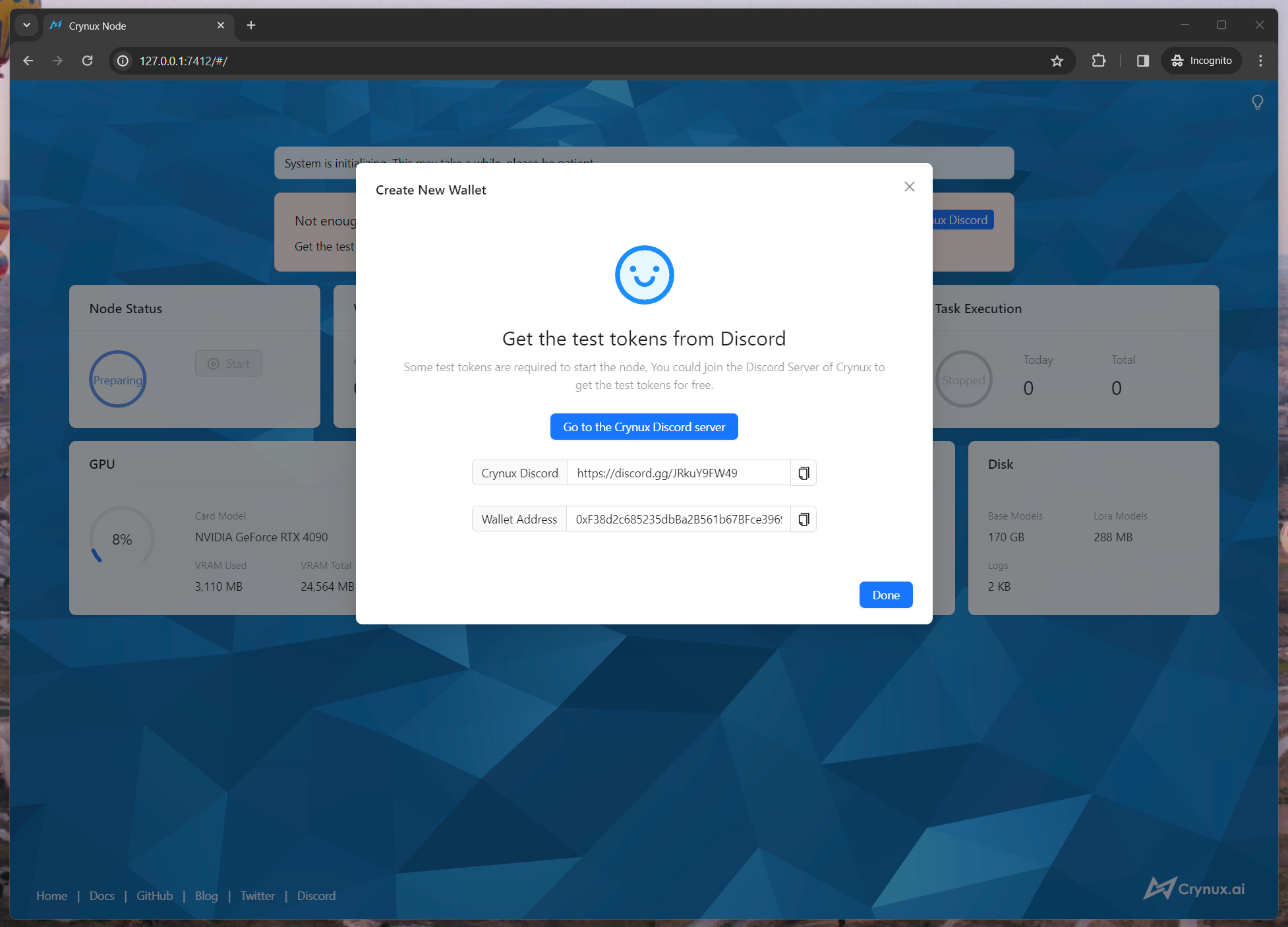
A wallet with enough CNX tokens must be provided to the node. If this is the first time you start a node, click the "Create New Wallet" button and follow the instructions to create a new wallet and finish the backup of the private keys. Join the Crynux Discord to learn more about acquiring CNX tokens and starting a node.
{% embed url="" %}
## 6. Wait for the system initialization to finish
If this is the first time you start a node, it could take quite a long while for the system to initialize. The most time consuming step is to download \~40GB of the commonly used model files from the Huggingface. The time may vary depending on your network speed.
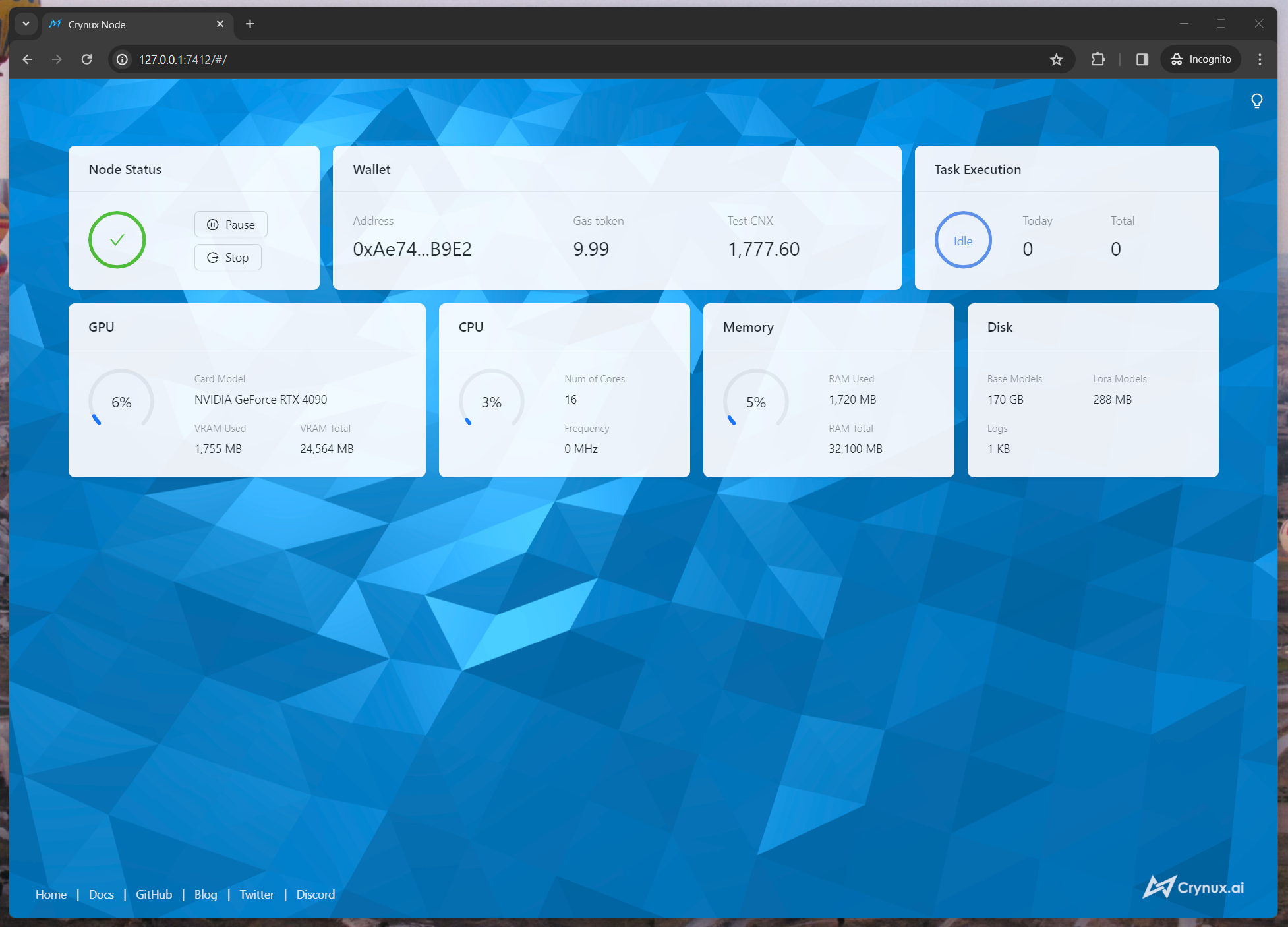
After the models are downloaded, a test image generation task will be executed locally to examine the capability of your device. If the device is not capable to generate images, or the generation speed is too slow, the node will not be able to join the network. If the task is finished successfully, the initialization is completed:
## 7. Join the Crynux Network
The Crynux Node will try to join the network automatically every time it is started. After the transaction is confirmed on-chain, the node has successfully joined the network. When the node is selected by the network to execute a task, the task will start automatically, and the tokens will be transferred to the node wallet after the task is finished.
Now the Node is fully up and running. You could just leave it there to run tasks automatically.
The Node could be paused or stopped at any time by clicking the control buttons. If the node is in the middle of running a task, after clicking the buttons, the node will go into the "pending" status and continue with the running task. When the task is finished, the node will pause/stop automatically.
The difference between pausing and stopping is that pausing will not cause the staked CNX tokens to be returned, so that the transaction costs less gas fee than stopping. If you have a plan of going back, you could use pausing rather than stopping.
## 8. Updating the Node
### a. Pull the latest image
First, refresh your local image to pull the latest version from the remote server.
{% tabs %}
{% tab title="Base users" %}
```bash
# Using LXD
$ sudo lxc image refresh crynux:crynux-node:latest-base --alias
# Using Incus
$ sudo incus image refresh crynux:crynux-node:latest-base --alias
```
{% endtab %}
{% tab title="Near users" %}
{% hint style="info" %}
Coming soon. The Near network is still being deployed and will be available shortly.
{% endhint %}
{% endtab %}
{% endtabs %}
### b. Stop and delete the old container
```bash
# Using LXD
$ sudo lxc stop crynux-node
$ sudo lxc delete crynux-node
# Using Incus
$ sudo incus stop crynux-node
$ sudo incus delete crynux-node
```
Don't worry, if you have mounted the data and config directories, your data will be safe on the host machine as it is managed by the profile.
### c. Launch a new container with the latest image
Follow the instructions in step 4 to launch a new container. It will now use the latest image you just pulled, and automatically apply the `crynux-node` profile with all your settings.
{% tabs %}
{% tab title="Base users" %}
```bash
# Using LXD
$ sudo lxc launch crynux:crynux-node:latest-base crynux-node -p default -p crynux-node
# Using Incus
$ sudo incus launch crynux:crynux-node:latest-base crynux-node -p default -p crynux-node
```
{% endtab %}
{% tab title="Near users" %}
{% hint style="info" %}
Coming soon. The Near network is still being deployed and will be available shortly.
{% endhint %}
{% endtab %}
{% endtabs %}
Your node will restart with the new version, using your existing data and configuration.
---
# Agent Instructions
This documentation is published with GitBook. GitBook is the documentation platform designed so that both humans and AI agents can read, navigate, and reason over technical content effectively. Learn more at gitbook.com.
## Querying This Documentation
If you need additional information that is not directly available in this page, you can query the documentation dynamically by asking a question.
Perform an HTTP GET request on the current page URL with the `ask` query parameter, and the optional `goal` query parameter:
```
GET https://docs.crynux.io/node-hosting/start-a-node/start-a-node-lxc.md?ask=&goal=
```
`ask` is the immediate question: it should be specific, self-contained, and written in natural language.
`goal` is optional and describes the broader end goal you are ultimately trying to accomplish on behalf of the user. GitBook uses it to tailor the answer towards what is most useful for that goal.
The response will contain a direct answer to the question and relevant excerpts and sources from the documentation.
Use this mechanism when the answer is not explicitly present in the current page, you need clarification or additional context, or you want to retrieve related documentation sections.